
Technical Specifications and Architectural Breakdown
To understand why an external hard drive fails, one must first deconstruct the architecture. Modern external storage generally falls into two categories: Hard Disk Drives (HDD) and Solid State Drives (SSD). HDDs rely on rotating magnetic platters and mechanical read/write heads. This architecture is inherently susceptible to physical trauma; even a minor drop can cause a head crash, where the read head strikes the platter, resulting in catastrophic data loss. Furthermore, the motors that spin these platters at 5,400 or 7,200 RPM are subject to wear, particularly in environments with fluctuating temperatures.
Conversely, SSDs utilize NAND flash memory. While they lack moving parts, they are not immune to failure. They rely on complex controller chips that manage wear leveling—the process of distributing data across memory cells to prevent premature degradation. If the controller fails, the data remains on the flash chips, but it becomes inaccessible to the host computer. Both storage types depend heavily on the interface protocol, typically USB 3.2 Gen 2 or Thunderbolt 3/4. These interfaces carry both data and power. A common point of failure is the USB bridge chip inside the enclosure, which translates the drive’s native SATA or NVMe signal into a USB-compatible format. If this bridge fails, the drive may appear dead even if the storage media itself is perfectly functional.
Industry Landscape and Competitive Comparison
The market has shifted significantly over the last decade, with portable SSDs largely replacing HDDs for professional workflows due to their superior shock resistance and transfer speeds. However, HDDs continue to dominate the high-capacity, low-cost archival sector. When selecting a drive, users must weigh the trade-offs between cost per gigabyte, physical durability, and throughput performance.
| Drive Type | Primary Use Case | Durability | Cost Efficiency |
|---|---|---|---|
| Mechanical HDD | Cold storage, backups | Low (moving parts) | High (low cost/GB) |
| SATA SSD | General storage, OS booting | High (no moving parts) | Moderate |
| NVMe SSD | Video editing, high-speed IO | High (no moving parts) | Low (high cost/GB) |
While mechanical drives remain the standard for massive, multi-terabyte cold storage, the industry is moving toward high-density flash storage. For the average user, the distinction between these technologies dictates not only how fast they can move files but also how they should manage their backup strategy. A mechanical drive should never be relied upon as a single point of failure for critical assets.
Practical Consumer & Enterprise Takeaways
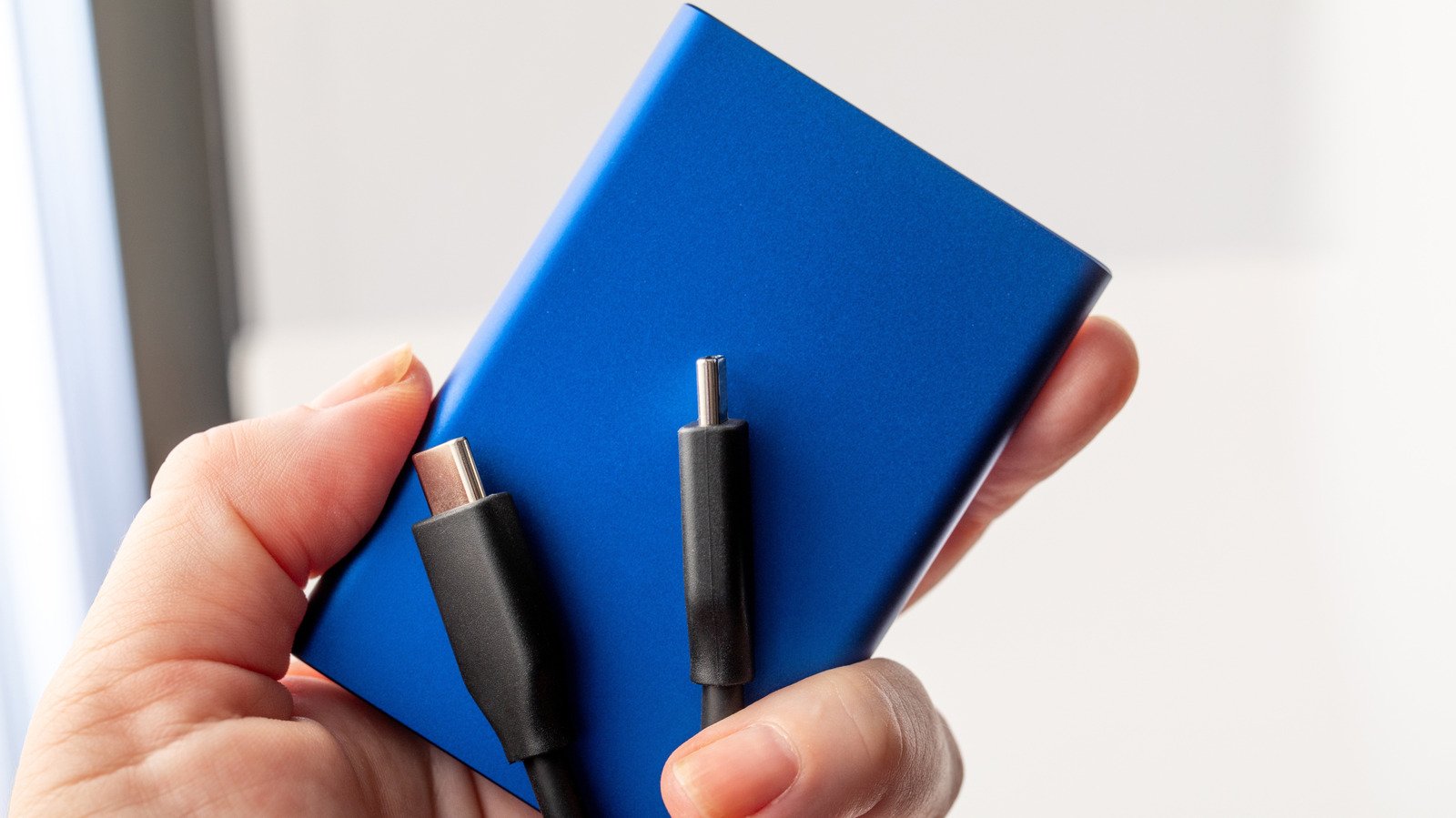
When an external drive fails to mount, the reflexive response is often panic. However, a methodical approach is required. First, isolate the hardware. Cables are the most frequent point of failure; swapping a suspect USB-C cable for a certified, high-bandwidth alternative often resolves “ghost” connection issues. If the drive is a mechanical unit, listen for clicking sounds. A rhythmic click usually indicates a head-actuator failure, which requires professional clean-room recovery services. Do not attempt to force-power a clicking drive, as this can cause permanent platter damage.
From a software perspective, Windows 11 users should utilize Disk Management to verify if the drive is initialized. Often, a drive that appears “unallocated” or lacks a drive letter is simply suffering from a corrupted partition table. The CHKDSK utility, run via the command line with the /f or /r flags, can identify and repair logical file system errors. However, if the drive is not visible in the BIOS or Device Manager, the issue is likely electrical or controller-based, necessitating hardware-level intervention rather than software repair.
Frequently Asked Questions
Why does my external hard drive show up in Device Manager but not in File Explorer?
This typically indicates that the drive is physically functional but lacks a drive letter or has a corrupted file system. Open Disk Management, locate the drive, right-click the partition, and select “Change Drive Letter and Paths” to assign one. If the partition is marked as “RAW,” the file system has likely failed, and you may need data recovery software to extract files before reformatting.
Is it safe to leave my external hard drive plugged in permanently?
While modern drives are designed for uptime, leaving them connected exposes them to power surges and potential file system corruption during unexpected shutdowns. For critical backups, it is best practice to connect the drive only when performing the backup and to disconnect it safely afterward, keeping it stored in a cool, dry environment.
How can I tell if my SSD is nearing the end of its life?
SSDs have a finite number of write cycles. Most manufacturers provide proprietary software—such as Samsung Magician or Western Digital Dashboard—that reads the S.M.A.R.T. (Self-Monitoring, Analysis, and Reporting Technology) data. If the “Health Status” shows a significant drop in remaining life, it is time to migrate your data to a new device immediately.
The Bottom Line
The external hard drive remains a cornerstone of digital infrastructure, yet it is a component that demands respect and regular maintenance. Reliability is not a static state; it is the result of choosing the right hardware for the task, maintaining physical connections, and practicing redundant backup strategies. Whether you are a creative professional managing terabytes of raw footage or a casual user preserving family memories, the assumption that a drive will function indefinitely is a dangerous one. By understanding the mechanical and electrical limitations of these devices, users can shift from a reactive stance to a proactive one, ensuring that their data remains secure against the inevitable hardware failures that define the lifecycle of digital storage.