
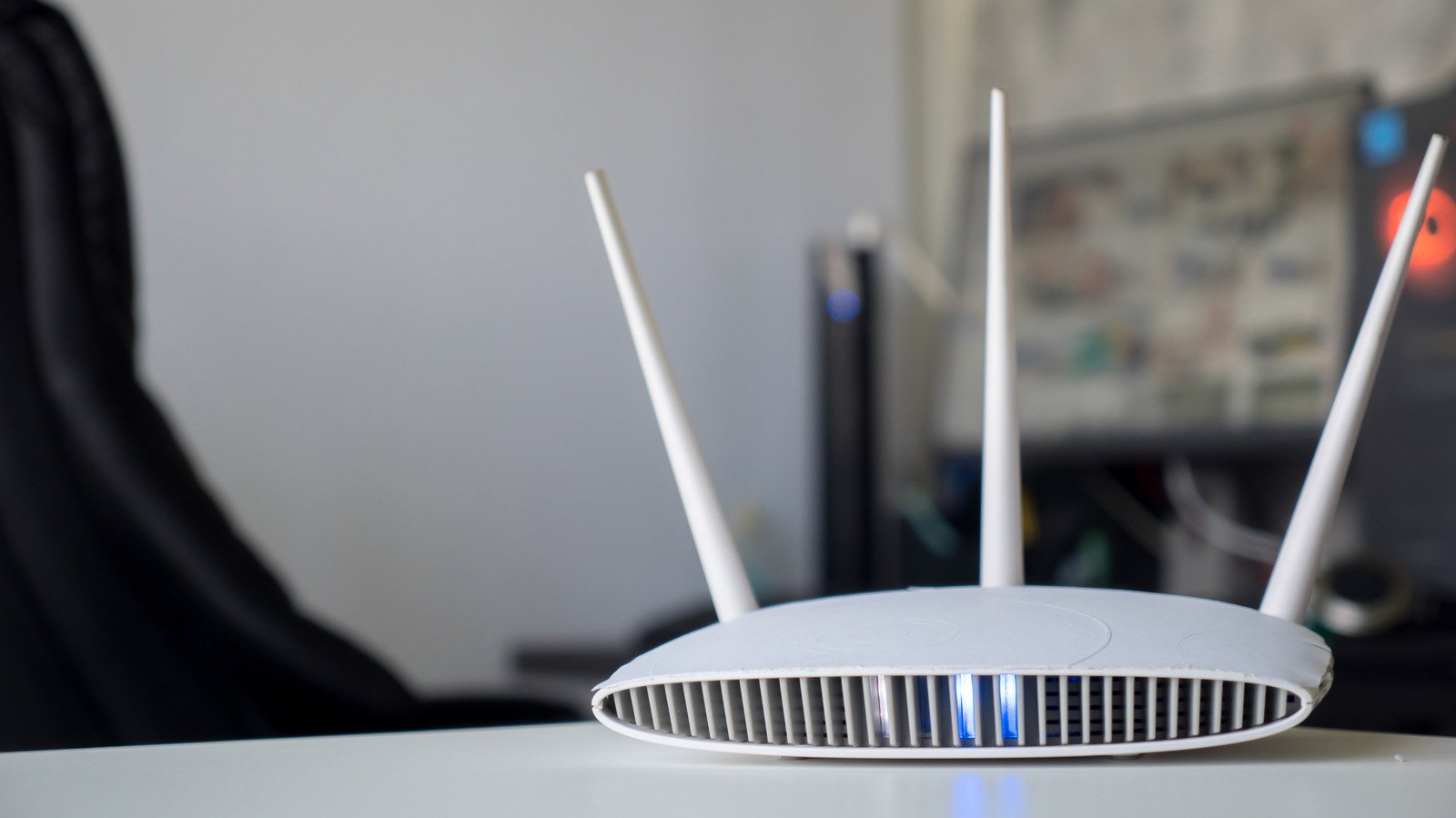
Netgear router lights indicate critical system health
Modern connectivity relies on the stability of your Netgear router, yet few users understand the complex language of its front-facing LED array. When your internet drops, the hardware is often communicating exactly what went wrong through color-coded signals. Understanding these status indicators is essential for maintaining a high-performance home network without needing a technician.
Netgear Router: Decoding the flashing status indicators
The Netgear router utilizes a series of symbols to relay its operational status. Most users ignore these until a failure occurs, but the power indicator serves as the primary diagnostic tool. A solid green light confirms normal operation, whereas a blinking white light warns that your firmware is corrupted. If you see a blinking white and amber pattern, your device has shifted into access point mode, which restricts advanced features like remote management.
When troubleshooting your Netgear router, consider the following status signals before performing a factory reset:
- Solid Amber: The device is currently in the boot-up sequence.
- Off Status: Indicates a complete lack of power or a disconnected Ethernet cable.
- Blinking White: The port is actively transmitting or receiving data traffic.
- Solid White: Confirms the Wi-Fi radios are broadcasting correctly.
How this compares to industry standards
Compared to mesh systems from competitors like Eero or TP-Link, the Netgear router interface remains more granular by providing dedicated lights for different frequency bands. While Eero relies heavily on a single status LED that pulses different colors, Netgear offers a detailed breakdown of 2.4GHz, 5GHz, and even 6GHz spectrums on higher-end models. This transparency allows power users to identify exactly which band is failing during a performance dip.
The bottom line for home network stability
If you encounter persistent issues, always power cycle your Netgear router before resorting to a factory reset, which clears all custom configurations. Consistent, reliable connectivity requires monitoring these lights periodically. By learning to interpret these visual cues, you can solve common connectivity bottlenecks faster than waiting for customer support to diagnose the problem remotely. Keeping your hardware updated and properly ventilated ensures these lights stay solid green, signaling a healthy and fast connection for all connected devices.