
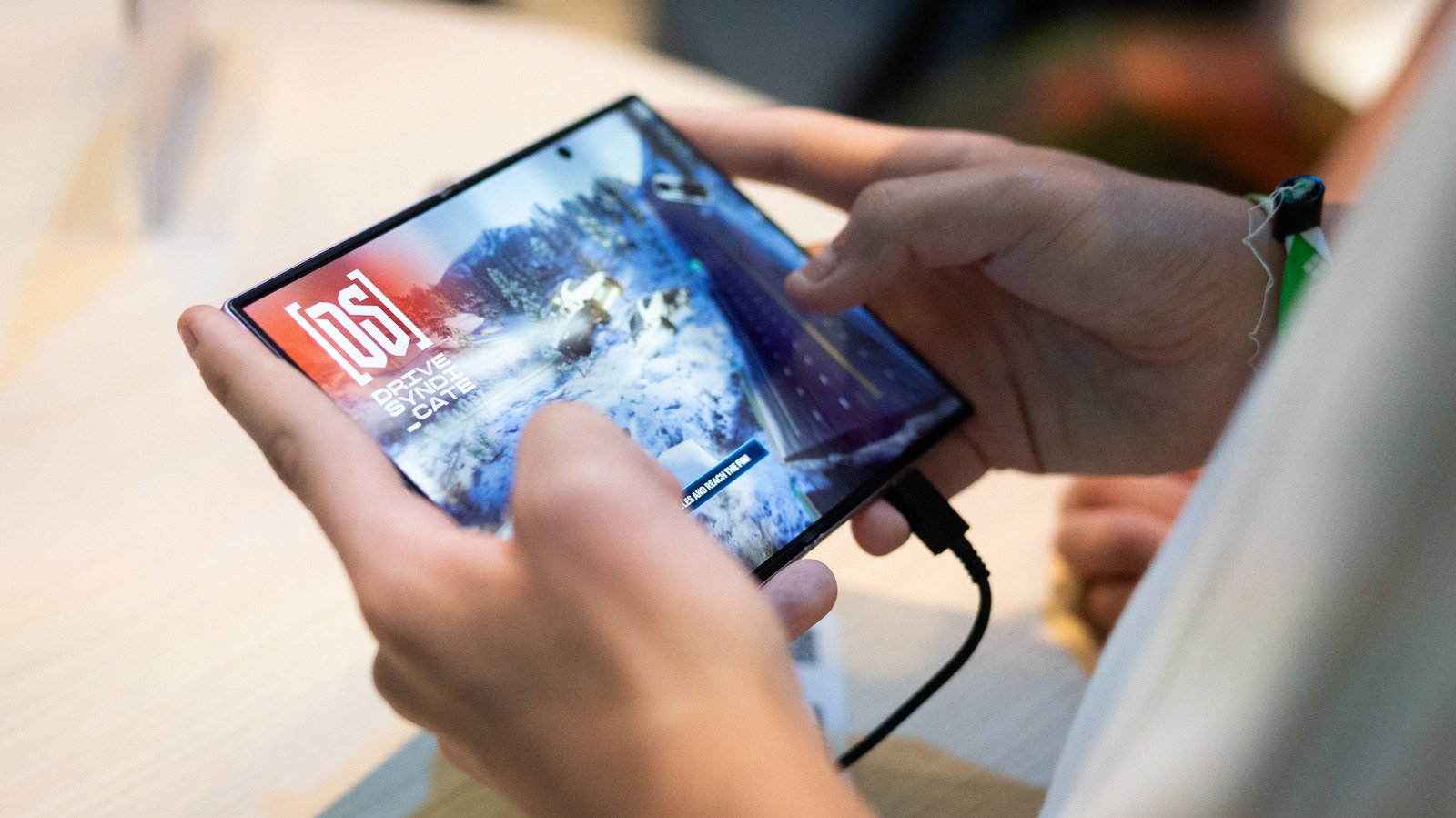
Galaxy Z Fold 8: Fixing App Scaling Troubles on Your Foldable Display
Owners of the new Samsung Galaxy Z Fold 8 are discovering that extra screen real estate comes with a few software hurdles. While the device offers more room for mobile gaming, video streaming, and reading, apps do not always adapt smoothly to the inner 4:3 display. Because of this, users frequently encounter awkward cropping or letterboxing on widescreen content. Fortunately, adjusting your app settings takes just a few seconds.
How to Adjust App Aspect Ratios in Device Settings
When you unfold your device, finding the right display balance makes all the difference. Samsung included built-in controls to override default scaling behavior on an individual basis. Here is how to adjust your software:
- Open your device Settings and tap on Display.
- Select Aspect ratio from the sub-menu.
- Choose the specific app you want to modify.
- Select either full screen, 4:3, or 16:9 as your default viewing mode.
Background apps may need to restart once you apply these changes. Alternatively, you can press and hold any app icon on your home screen, tap the small info button in the top right corner, and select App aspect ratios to change settings instantly.
Why Manual Scaling Matters for Daily Users
Although some unoptimized programs still misbehave, the hardware trade-offs remain worthwhile for power users. Reviews from Engadget highlight how the main screen’s 4:3 ratio successfully reduces widescreen letterboxing compared to older iterations. Taking a moment to manually configure your software ensures you get the absolute most out of your premium hardware investment without letting poorly scaled menus ruin your daily mobile experience.